01
Localization-ready masters
Strip source-language captions from the picture before adding a new translation as a separate, editable subtitle track.
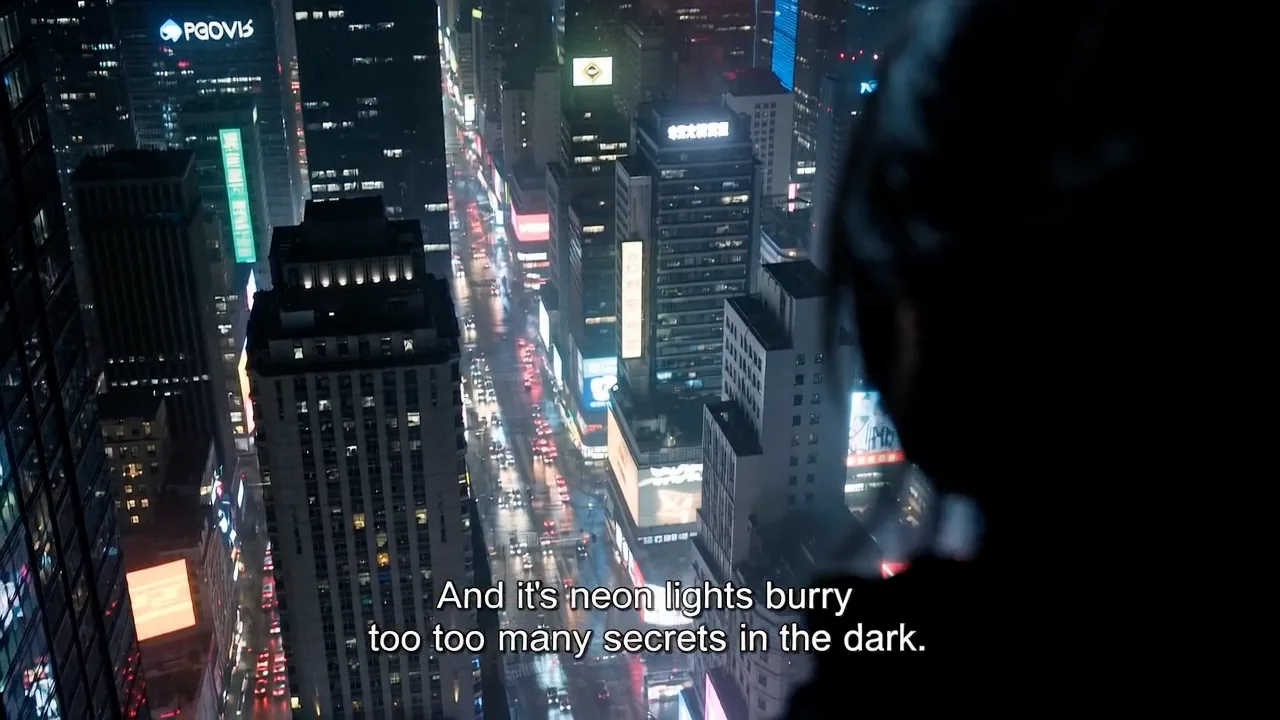
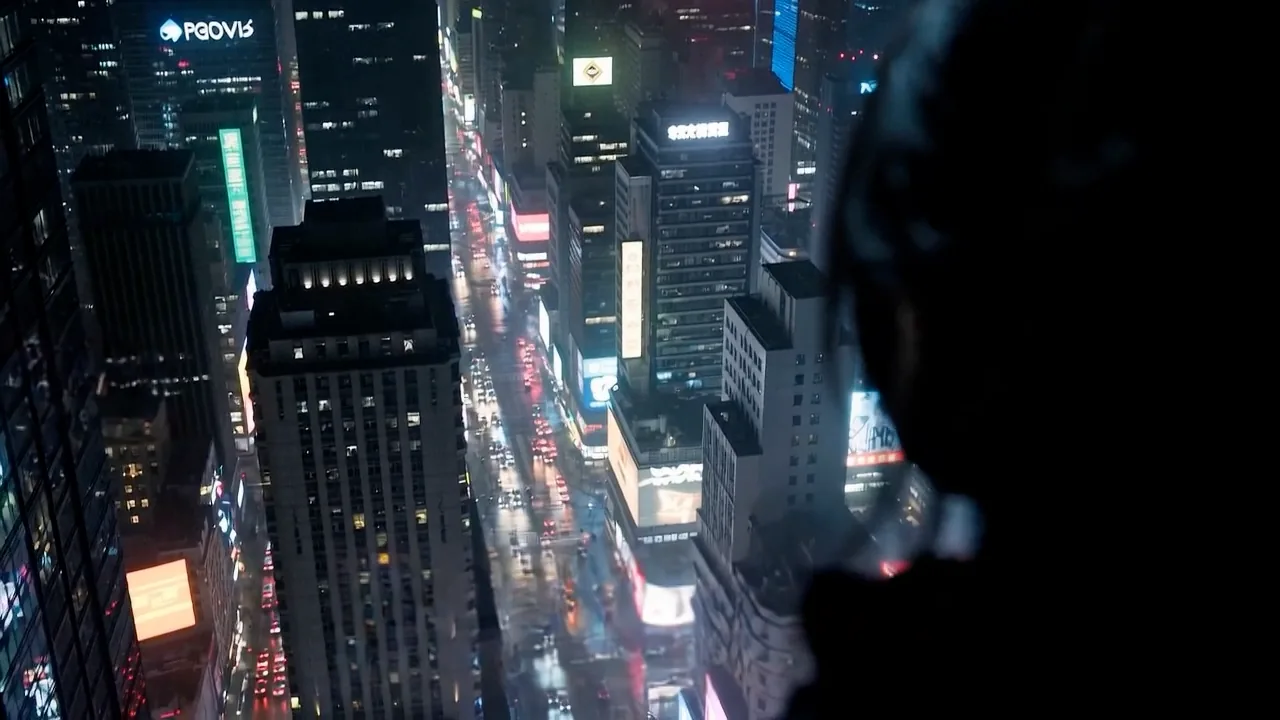
Which mode should you use?
Auto · Standard erase
Detects and erases white Chinese or English subtitles sitting in the lower centre of the frame. Cheapest and fastest, but the cleaned area can soften on a complex background.
Box select · Fine-grained erase
Rebuilds the background texture behind the text, so the cleaned area keeps its detail. Draw the region yourself to reach watermarks, channel bugs, or name bars anywhere in the frame.
Removing text from a video means erasing burned-in subtitles, captions, watermarks, or any other lettering and rebuilding what was behind them. The text is painted out frame by frame, so the background stays continuous rather than leaving a blurred patch.
These are the jobs people actually bring to Remove Text from Video, and the settings each one needs.
Strip source-language captions from the picture before adding a new translation as a separate, editable subtitle track.
Clean outdated titles, platform labels, or channel overlays before reframing a clip for a new campaign or format.
Remove permanent timecodes, news tickers, old lower thirds, or slide annotations while keeping the full frame available for reuse.
Remove Text from Video
Clean hardcoded subtitles with pricing that follows the real clip length, room for large source files, and a clear privacy window.

01
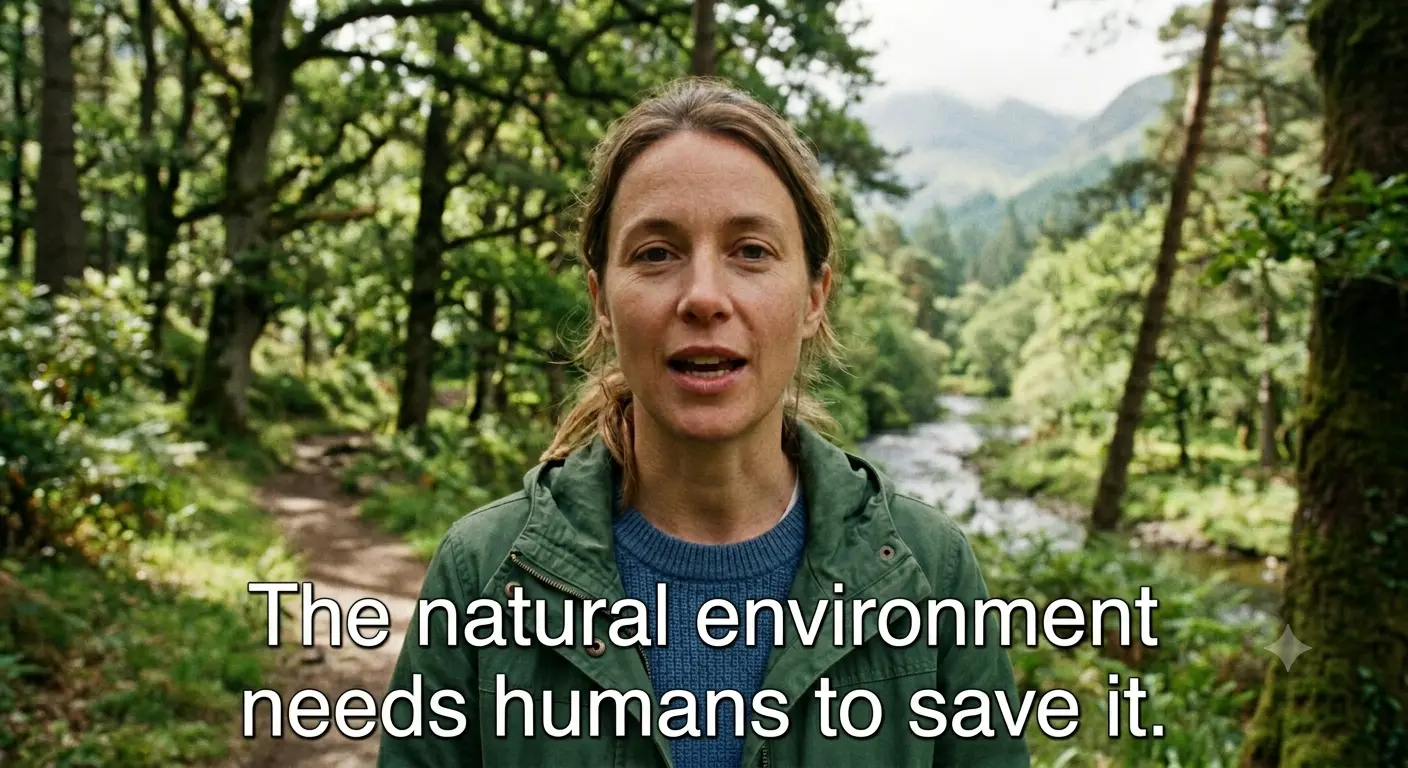
Many subtitle removal services round every started minute up to a full minute, so a 61-second video may be billed as 2 full minutes. H3Max calculates from the actual video seconds, avoiding the extra charge created by minute rounding.

02
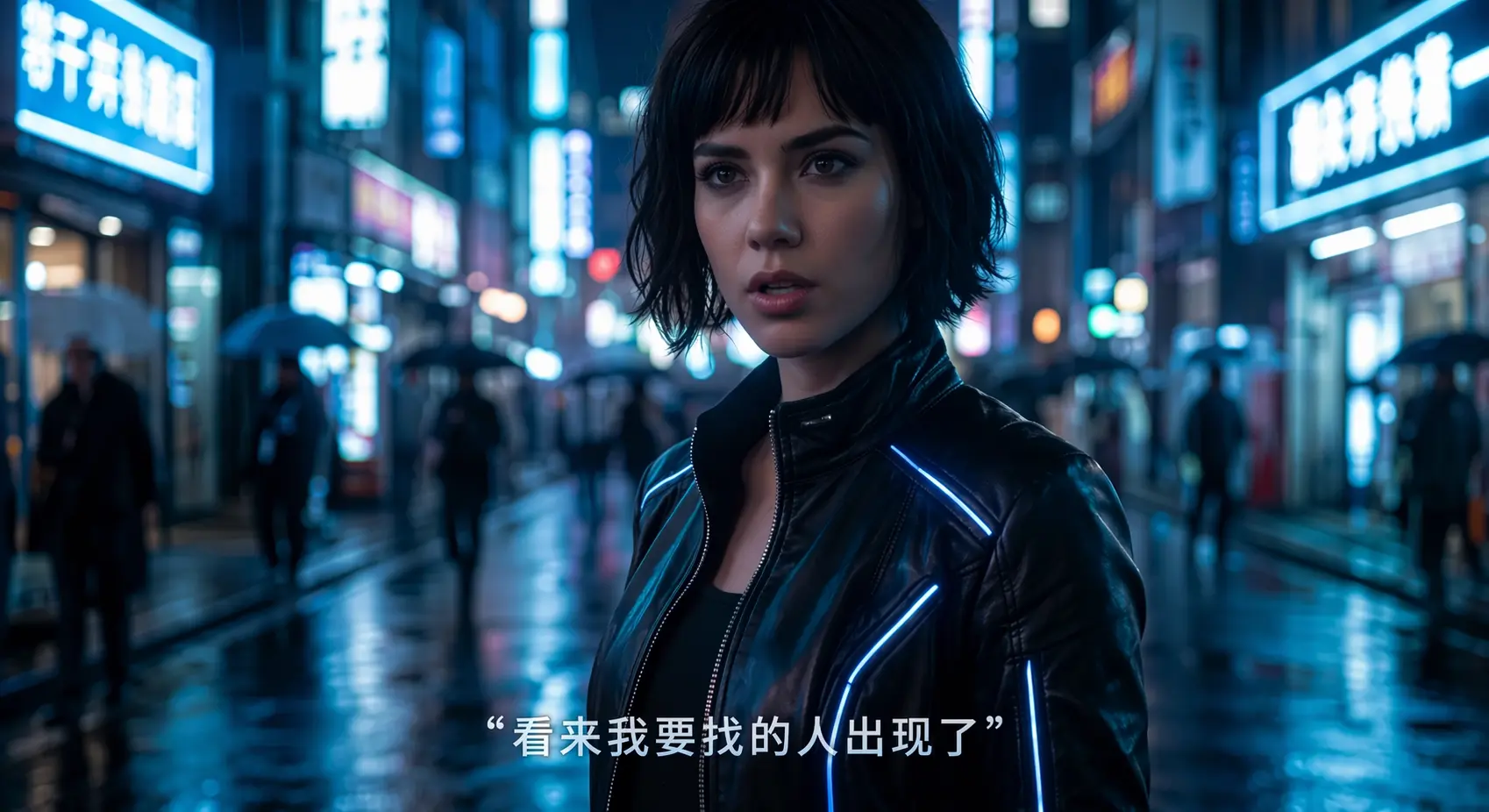
Upload MP4, MOV, WebM, or MKV source videos up to 2GB and up to 2K resolution. Source and processed files remain available for 30 days after upload, then they are automatically deleted from storage.
Remove Text from Video
Where Remove Text from Video is the right call, and where a different model does the job better.
Hardcoded or soft subtitles?
Use this tool for text burned into the picture. If a subtitle track can be disabled, remove that track instead—no AI reconstruction is needed.
Reconstruction or concealment?
Temporal inpainting rebuilds the affected region across frames; cropping, blur, mosaic, and black bars only cut away or hide the text.
Best source for cleaner results
Start with the highest-quality copy available. Tight text placement and stable backgrounds are easier; large lettering over faces, hands, or fast motion may require more reconstruction.
Choose an MP4, MOV, WebM, or MKV file up to 2GB and 2K resolution. The workspace reads the duration and dimensions locally before uploading so you can confirm the source first.
Use Subtitle for conventional captions, especially along the lower part of the frame. Use Text for other burned-in titles, timestamps, labels, logos, or watermark-style overlays.
Temporal inpainting analyzes neighboring frames, removes the detected lettering, and rebuilds motion, texture, and lighting behind it instead of covering the area with blur.
Inspect the output preview for difficult moments such as scene cuts, moving backgrounds, faces, or hands crossing the text, then download the completed result.
Some subtitle removal providers bill each started minute as a complete minute. We use the uploaded video’s actual duration in seconds, so unused seconds are not added to the bill.
Billing unit
UsActual video seconds
Typical per-minute providersEach started minute
10-second video
UsBilled for 10 seconds
Typical per-minute providersBilled as 1 full minute — 50 unused seconds
61-second video
UsBilled for 61 seconds
Typical per-minute providersBilled as 2 full minutes — 59 unused seconds
Write the brief, submit it here, and follow the result in Studio.